Application audit
Application audit events are logs that contain the information of who has performed a specific action, when, and from which client IP. Application audit logs are sent to an external Log Analytics located in the customer subscription. Customer must give the connection credentials to Nuance, that will be protected into the resource configuration of the production scope.
The diagram below shows a high-level interaction between Gatekeeper and Log Analytics:
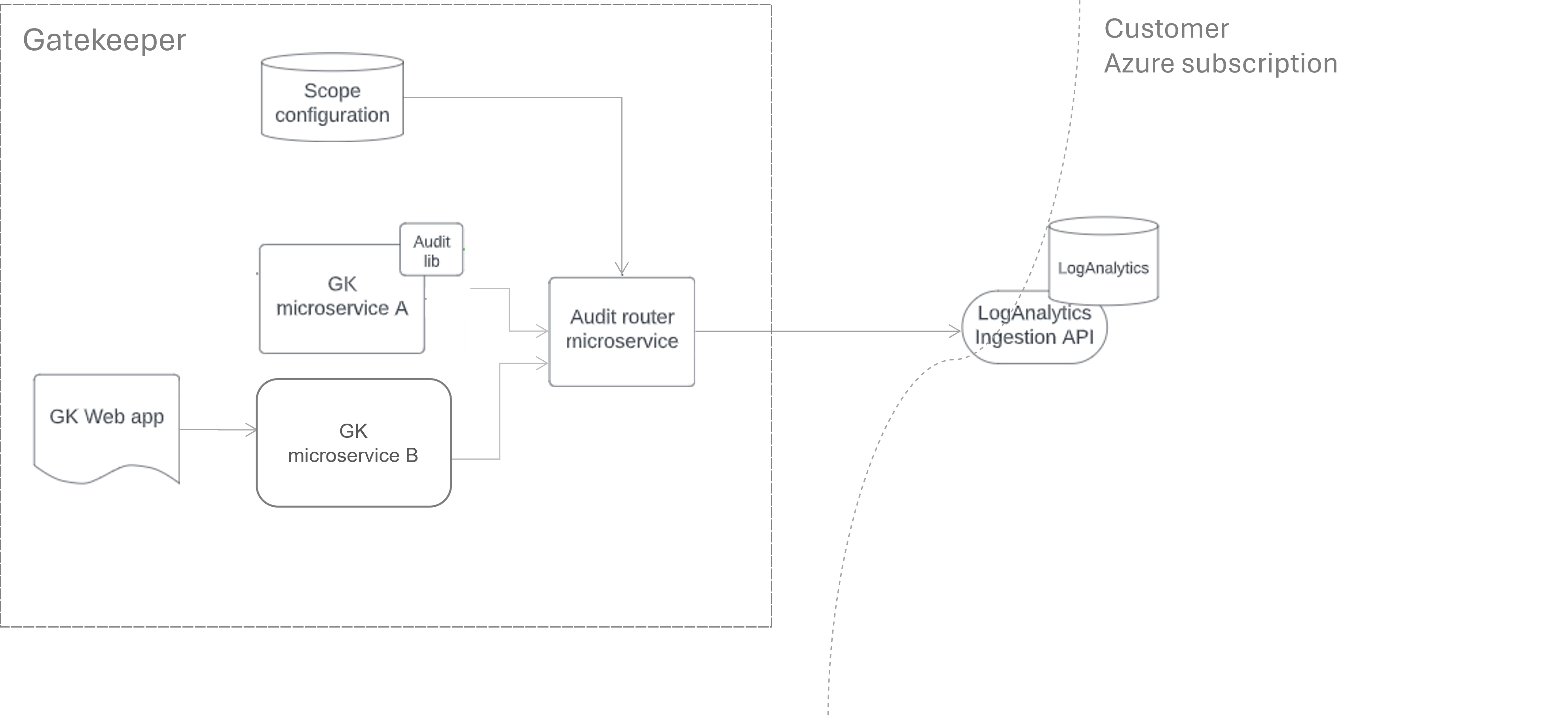
Gatekeeper Application Audit integration with Azure Log Analytics
Gatekeeper uses an Entra ID service principal, which is authorized to send data to a data collection endpoint. These collection rules are configured to route data to a Log Analytics workspace into a custom table.

The following steps provide the guidance on how to configure the resources required to ingest Nuance application audit logs into a Log Analytics workspace:
- Create a service principal in Entra ID.
- Create a data collection endpoint (DCE) to allow ingestion of custom data into a custom table.
- Create a custom table in the Log Analytics workspace and a data collection rule (DCR) to route data to the custom table.
- Grant the service principal permissions on DCR.
Prerequisites
Before you begin, you must have:
- An Entra ID tenant
- An Azure subscription linked to that Entra ID tenant
- A Log Analytics workspace in that subscription
Entra ID and Azure role-based access control (Azure RBAC) permissions are required to perform the operations for each step. All permissions to create an application Entra ID or resources in Azure are only needed for their creation. You don’t need to grant a new account with those permissions, but you can delegate the operation to someone who has or can have these permissions.
A part of the configuration is performed in the Azure and Entra ID portals. These portals require the operators to perform multi-factor authentication regardless of their permissions level.
Nomenclature
The following placeholders are used in the various steps:
<Tenant ID>is the identifier of the Entra ID tenant where the Azure subscription is linked to.<Subscription ID>is the identifier of the Azure subscription where the Log Analytics workspace is.<Resource Group Log Analytics>is the resource group where the Log Analytics is.<Resource Group Azure Monitor>is the resource group where DCR and DCE reside.<Workspace Name>is the name of the Log Analytics workspace.
Entra ID configuration
You need the following at the end of this configuration:
- The Entra ID registered application name and client ID.
- The corresponding secret for this application.
Securely share this information with Nuance. This information is used to configure the Gatekeeper’s application side for the log export.
Permissions required to create service principal
You need one of the following roles in Entra ID to create a registered application:
- Global Administrator - Users in this role have full control over the tenant configuration
- Application Administrator - Users in this role can manage all aspects of applications, except for assigning roles in Azure AD. For more information, see Delegate app registration permissions in Microsoft Entra ID .
Create a service principal
To create a service principal, follow these steps:
-
Go to the Entra ID portal with the required permissions and select Applications.
-
Go to App registration and click New Registration.
-
Provide the application name, such as Gatekeeper Application Logs Export, and leave all other options in their default settings.
-
Click Register.
-
Once the application is created, you are redirected to a page that contains application’s identifiers. Make note of the following to communicate with Nuance:
- Application (client) ID
- Directory (tenant) ID
Make sure to note the Application (client) ID and not the Object ID.
-
Select Certificates & Secret under Manage.
-
Click New client secret.
-
Enter a description for the secret and an expiration time for the secret according to your internal policies and click Add.
Note:
Copy the secret value and store it securely, as it can’t be retrieved again. Don’t share secrets using email or other insecure communication channels. -
At this point, you should have gathered the following for Nuance:
- Application (client) ID
- Directory (tenant) ID
- Secret value
Data collection endpoint
Unlike other data sources in Azure Monitor, a DCE must be created to allow custom data sources to flow through a DCR. The DCE needs to be created in the same region as the Log Analytics workspace.
Permissions required to create data collection endpoint
You must have at least the Contributor role on the <Resource Group Azure Monitor> resource group where DCE is created.
Create a data collection endpoint
To create a DCE, follow these steps:
- Go to the Azure portal with the correct permissions.
- In the search resource field, type Monitor and select Monitor from the result list.
- In the Settings section, select Data Collection Endpoints.
- Select Create.
- Fill in the following fields for endpoint details:
- Endpont Name: Enter a name for the DCE.
- Subscription: Select a subscription type.
- Resource Group: Select the
<Resource Group Azure Monitor>resource group. - Region: Select the same region where the Log Analytics workspace is located.
- Click Review + Create and then click Create.
- Select the Overview tab to see the newly created DCE and note the Log Ingestion URL. This URL is used by Nuance to configure the Log Analytics workspace.
Custom table
This section explains how to create a custom table as well as DCR to ingest the data.
Permissions required to create a custom table
You must have at least the Log Analytic Contributor role on the Log Analytics workspace to create a custom table
as well as the Contributor on the <Resource Group Azure Monitor> resource group where the DCR is created.
Create a custom table
To create a custom table, follow these steps:
-
Go to the Azure portal with the correct permissions.
-
In the search resource field, type the name of your workspace and select it from the results.
-
In the Settings section, select Tables.
-
Click Create and select New custom log (DCR-based).
-
In the table, type the name of the table, such as Gatekeeper2_Application_Audit.
-
For DCR, click Create a new data collection rule. A panel on the right-hand side opens where you can pick the subscription,
<Resource Group Azure Monitor>and give it a name according to the naming convention you follow. Make sure that you select the same region as your Log Analytics workspace. -
Pick the DCE that you created in DCE creation steps.
-
In the Schema and transformation tab, click Upload sample file. The following is the sample JSON file that you can save to your machine and upload:
{ "TimeGenerated": "6/18/2024, 1:51:54.689 PM", "ScopeId": "gk_scope", "OperationType": "READ", "OperationName": "Login", "OperationCategory": "AUTHENTICATION", "OperationCategoryDescription": "It provides details about the product authentication", "OperationResult": "SUCCESS", "OperationResultDescription": "Login to Gatekeeper web app portal <user@domain.com>", "PrimaryEntityType": "", "PrimaryEntityId": "", "RelatedEntities": "{\"gk_scope_id\":\"86ebb5d4-a431-4c21-8131-0880f17709fa\"}", "ExternalEntities": "{\"scope_id\":\"gk_scope\"}", "CallerIdentity": "{\"identityType\":\"USERNAME\",\"identity\":\"user@domain.com\",\"identityDescription\":\"Web Admin Portal User\"}", "CallerIPAddress": "0.0.0.0", "CallerAgent": "Mozilla/5.0 (Windows NT 10.0; Win64; x64) AppleWebKit/537.36 (KHTML, like Gecko) Chrome/125.0.0.0 Safari/537.36", "CustomData": "" } -
Click Next.
Data collection rule permissions
This section explains how to grant permissions to the service principal created in the Entra ID Configuration section to send data to the DCR.
Permissions required to grant permissions to data collection rule
The user performing the steps must have at least one of the two roles on the resource group where DCR was created:
- Owner has all permission on the DCR
- User Access Administrator has permission to change permissions
These permissions can be given at the <Resource Group Azure Monitor> level or directly on the DCR.
Grant permissions to Data Collection Rule
To grant permissions to DCR, follow these steps:
- Go to the Azure portal with the correct permissions.
- In the search resource field, type the name of your DCR and select it from the results.
- Select Access control (IAM) and click Add to add role assignment. If the menu item is grayed out, you don’t have the permission to perform the operation.
- Search for and select Monitoring Metrics Publisher and click Next.
- In the Members section, click +Select members and search for the registered application you created in Entra ID Configuration. Then click Select and Next.
- Review the information and click Review + assign.
- On the DCR page, select the Overview blade and make note of the Immutable Id. This Immutable Id needs to be sent to Nuance.
Onboard Log Analytics workspace
Customers must give Nuance the following connection details so that Nuance can register their Log Analytics resource:
- scope_id or gk_scope_id - Gatekeeper scope identifier.
- tenant_id - Azure tenant ID.
- client_id - Microsoft Entra ID application ID.
- client_secret (secured in Resource Parameters) - Microsoft Entra ID application secret.
- data_collection_endpoint - Logs-Ingestion endpoint URL. The DCE is an Azure middleware used to connect to LogAnalytics.
- data_collection_rule_id - Data-Collection rule immutable ID.
- stream_name
- Expected format:
Custom-<LogAnalyticsTableName>, such asCustom-Gatekeeper2_Application_Audit.
Enable the application audit configuration
To enable the shipment of audit logs:
- Log in to Gatekeeper web admin console.
- On the left-hand navigation pane, click Configuration. The Configuration page opens.
- Select SCOPE from the configset dropdown menu.
- In the Application Audit tab, set the EnableApplicationAuditLogging parameter to true. By default, it’s set to false.
Note:
The router service doesn’t ship the logs in the following cases:
- if the parameter is false
- if the connection details aren’t set into the Scope Resource Configuration (SRE)
Audit events shipped to Log Analytics
The table below lists the audited events and APIs shipped to Log Analytics:
| Audited event / API | Category |
|---|---|
| Login (Web Admin Portal) | Authentication |
| Logout (Web Admin Portal) | Authentication |
| ListenToAudio (Web Admin Portal) | Authorization |
| Login (Web Agent Console) | Authentication |
| Logout (Web Agent Console) | Authentication |
| GetDownloadURL | Authorization |
| DeleteVoiceprintTemplate | Object Management |
| DeleteVoiceprintProfile | Object Management |
| RemoveEnrollmentSegment | Object Management |
| LockVoiceprint | Object Management |
| UnlockVoiceprint | Object Management |
| AddFraudsterToWatchlist | Object Management |
| RemoveFraudsterFromWatchlist | Object Management |
| DeleteWatchlist | Object Management |
| DeleteFraudster | Object Management |
| OptOutPerson | Object Management |
| Train (Train Voiceprint) | Object Management |
| CreateRole | Role Management |
| DeleteRole | Role Management |
| CloneRole | Role Management |
| ResetFactoryRole | Role Management |
| AddRulesToRole | Role Management |
| RemoveRulesFromRole | Role Management |
| AddMemberToRole | Role Management |
| RemoveMemberFromRole | Role Management |
The following list describes each category mentioned in the table above:
- Authentication - It provides details about the product authentication.
- Authorization - It provides details about the product authorization for special actions.
- Object Management - It provides details about the entities management.
- Role Management - It provides details about the role management.
Examples
The screenshot below displays an example of audit log results in Log Analytics workspace:
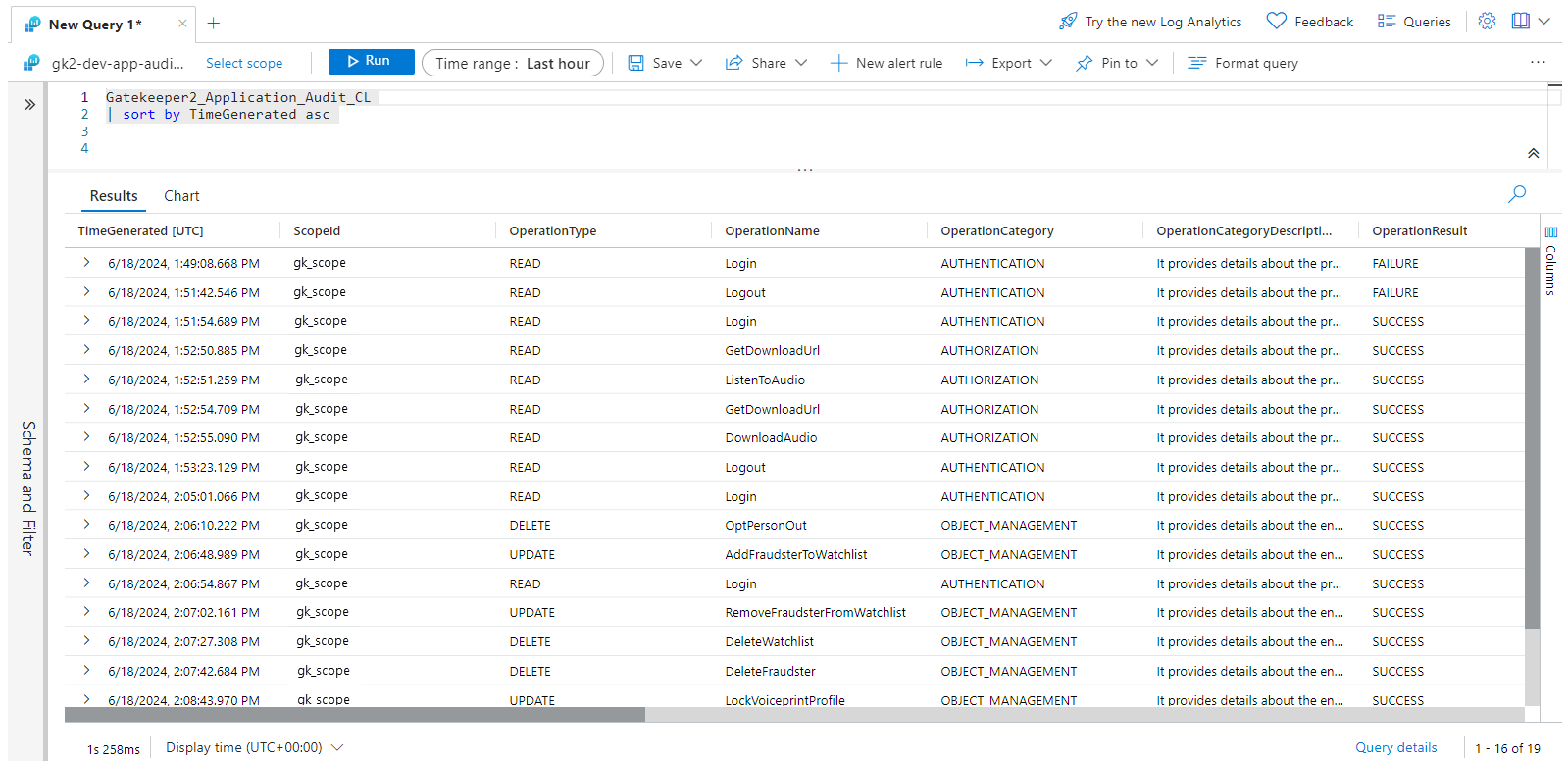
You can also export the results of audit logs into a CSV file by clicking Export. Here’s an example CSV file: Sample application audit CSV file.